The prompt manager extension for your AI chats.
Type $ in ChatGPT, Claude, Gemini, or Perplexity to find a saved prompt, fill in its details, and insert it without leaving the conversation.
- ChatGPT
chatgpt.com
- Claude
claude.ai
- Gemini
gemini.google.com
- Perplexity
perplexity.ai
How it works
From $ to a finished prompt in a few keystrokes.
Your prompts stay in your Parampt library. The extension brings them to the message field of the AI tool you already use.
- 01
Install and connect
Add Parampt to Chrome or Brave, then connect it to your Parampt library in one click. You can revoke the connection at any time from your settings.
- 02
Type $ in your AI chat
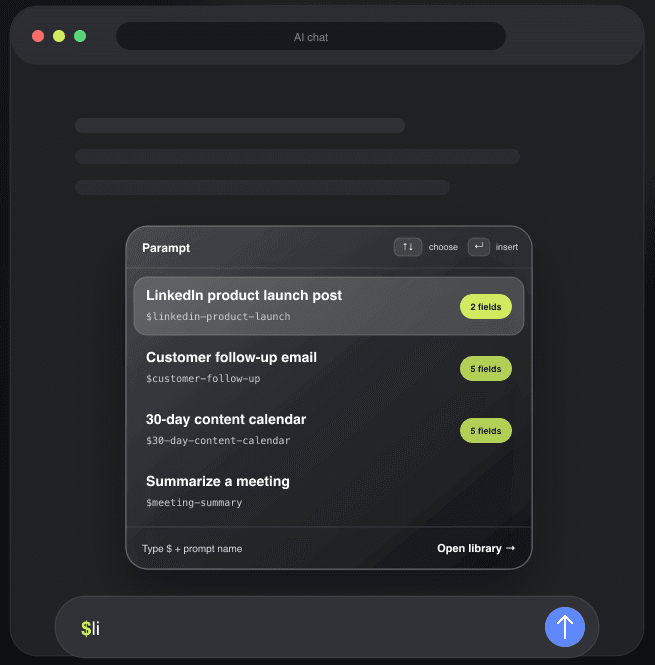
In the message field, type $ followed by a prompt name. Matching prompts appear right where you write. Choose one with the arrow keys and Enter.
- 03
Fill it in. Send when ready.
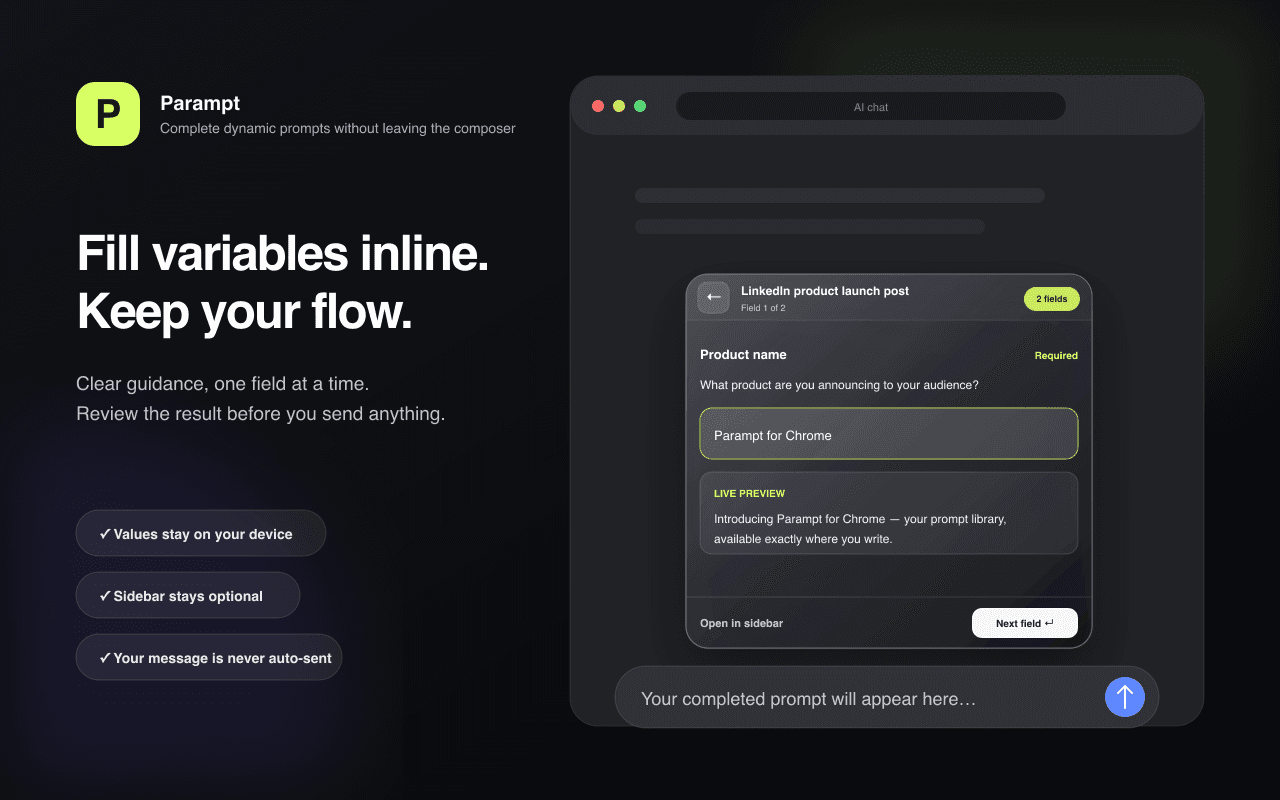
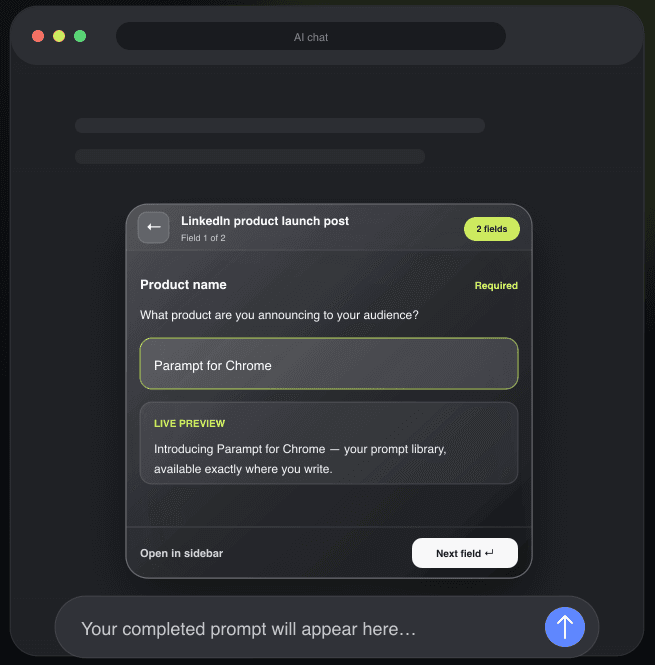
Complete the variables one field at a time with a live preview. The finished prompt replaces your command, and you decide when to send it.
- $ + prompt name
- Search your library from the message field
- $parampt
- Open the full library in the side panel
- ⌘ / Ctrl + Shift + P
- Open Parampt from any page
Right where you write
Find it. Fill it. Keep your flow.
No tab switching and no copy-paste between documents. Search with the keyboard, complete each variable with guidance, and review the result before anything is sent.
Privacy by design
Your chats stay yours.
The extension has one job: bring the prompts you choose into the AI chat you are using. It asks only for the permissions that job needs.
- Parampt never does this: Send a message to the AI on your behalf
- Parampt never does this: Read or store your conversations
- Parampt never does this: Access your browsing history or passwords
- Parampt never does this: Touch form fields unrelated to the AI composer
Permissions, explained
What the extension asks for, and why.
- storage
- Keeps your revocable Parampt connection on your device. Disconnecting removes it.
- identity
- Runs the explicit sign-in flow that connects the extension to your Parampt account.
- sidePanel
- Shows search, variables, and preview beside the active chat.
- activeTab
- Inserts the prompt you chose into the chat you are using, only when you ask.
- AI chat sites
- Detects $ commands in the composer. That text is checked locally and never sent to Parampt.
Frequently asked questions
About the extension.
Is the Parampt Chrome extension free?
Yes. The extension is free to install and works with the Free plan, which stores up to 5 prompts of your own. Lifetime removes the storage limit and unlocks the full Prompt Market.
Which browsers and AI chats are supported?
Parampt works on Chrome and Brave. Inside the browser, it works in ChatGPT, Claude, Gemini, and Perplexity.
Does the extension read my conversations?
No. It only checks the text of the message field to detect a command that starts with $, and that check happens on your device. Your conversations, variable values, and composer text are never sent to Parampt.
Will Parampt send messages for me?
Never. The finished prompt is inserted into the message field so you can review and edit it. You decide when to send it.
What happens if a website blocks insertion?
Parampt falls back to a safe copy to your clipboard, so you can paste the finished prompt yourself.
Do I need a Parampt account?
Yes. The extension gives you access to your own prompt library, so you connect it to a free Parampt account. You can create and organize prompts on parampt.com, then use them in any supported AI chat.
Your prompt library, in every AI chat
Stop copying prompts from your notes.
Install the extension, connect your free library, and type $ in your next conversation. Need prompts to start with? Try a free prompt template.